English
Equipment Management
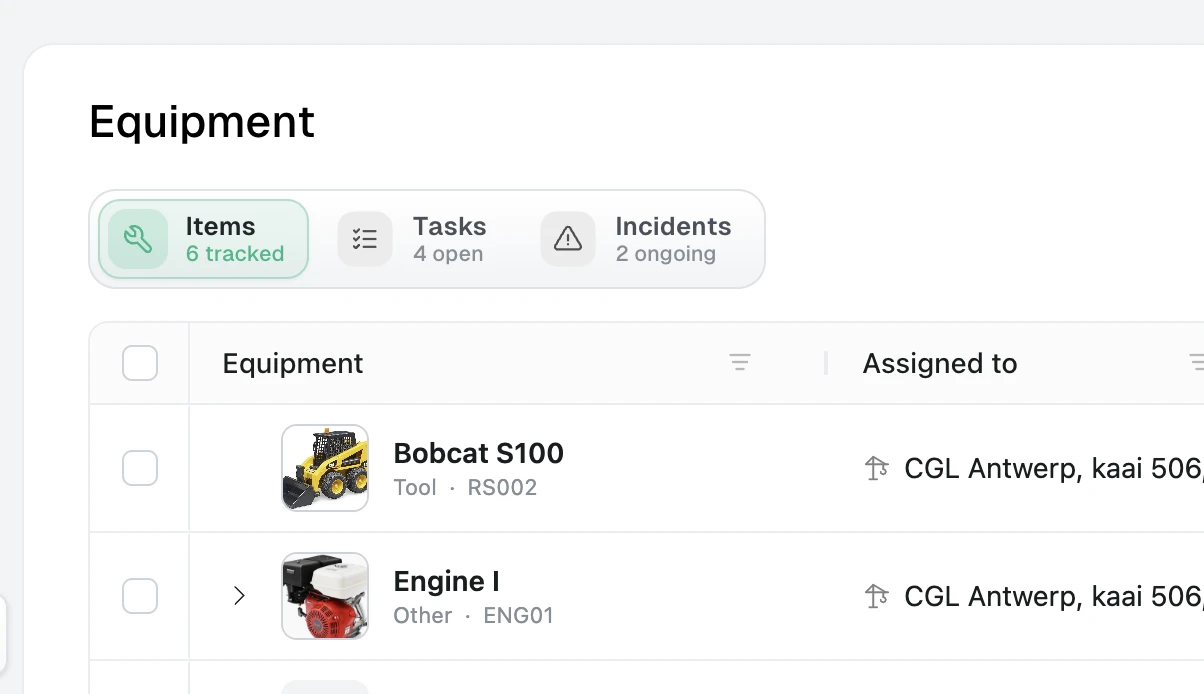
Use the Equipment module to keep terminal and vessel equipment, its open work, and its history in one place. Open Equipment from the main navigation.
What you can track
- Equipment assigned to a terminal or vessel, plus unassigned items
- Parent and child equipment, such as an engine fitted to a larger machine
- Availability, operating condition, brand, model, serial number, and a photo
- Responsible contacts and related documents
- Tasks with an owner, priority, due date, and status
- Incidents with their duration, remarks, and attachments
- Comments and an automatic activity history
Add an equipment item
- Open Equipment > Items.
- Select Add equipment.
- Enter a Name and choose whether the item belongs to a Terminal, a Vessel, or is Unassigned.
- Add the fields your team uses to identify it: code, type, status, condition, brand, model, serial number, and description.
- If the item is part of another machine, choose a Parent item.
- Save the item, then open it to add a photo, documents, contacts, tasks, incidents, and comments.
Parent items
A parent must belong to the same terminal or vessel. Choose the assignment before selecting a parent; changing the assignment clears the parent selection.
Equipment types are Tool, Vehicle, Crane, Lifting, Storage, and Other. Statuses run from Available and In use through Maintenance, Out of service, and Retired. Condition is recorded separately as Excellent, Good, Fair, or Poor.
Find the work that needs attention
The switcher at the top of the workspace provides three views:
| View | What it shows |
|---|---|
| Items | The equipment hierarchy, assignment, status, condition, and counts of open tasks and incidents. |
| Tasks | Open work by default, with equipment, status, priority, due date, and assignee. Switch to All to include completed and cancelled tasks. |
| Incidents | Ongoing incidents by default, including type, start date, and duration. Switch to All to include resolved incidents. |
Use search in any view. You can also filter all three views by terminal, vessel, or unassigned ownership; the Items view adds status and type filters.
Work with an equipment record
Open an item to review its identity, assignment, status, condition, and parent. Select the pencil to edit these details. The tabs below the header organize the rest of the record:
- Overview previews outstanding work, incidents, recent documents, linked contacts, and activity.
- Documents stores manuals, certificates, inspection reports, and other files against the item.
- Contacts links an existing contact or creates a new one for the operator, technician, or supplier representative.
- Tasks records work to do, in progress, blocked, done, or cancelled.
- Incidents records technical, environmental, crew, security, infrastructure, or regulatory events.
The item photo accepts image files up to 5 MB. Hover over the image to replace or remove it.
Manage tasks
Create a task either from Equipment > Tasks or from an item's Tasks tab. Add a title, optional description, priority, status, due date, and assignee.
Open tasks are To do, In progress, or Blocked. Overdue tasks are highlighted in red. Mark a task done with its checkbox or change its status from the task card.
Log and resolve incidents
Create an incident from Equipment > Incidents or from an item's Incidents tab. Record its type, start time, optional title and remarks, and any attachments. Leave Resolved empty while the incident is ongoing; add a resolved time when the equipment returns to a known state.
The activity timeline records important changes, including assignment, status, condition, photo, task status, and incident resolution.
Existing terminal equipment
Equipment that was previously managed inside the Terminals module remains available. It now appears in the standalone Equipment module, where it can also be assigned to a vessel or left unassigned.
Troubleshooting
| Problem | What to check |
|---|---|
| Equipment is missing from the navigation | Ask an administrator to enable the Equipment module for your role. |
| I cannot select a parent item | Assign the item to a terminal or vessel first. Only items with the same assignment are offered. |
| A task does not appear | Switch the Tasks view from Open to All and clear the owner filter. |
| An incident does not appear | Switch the Incidents view from Ongoing to All and clear the owner filter. |
| An item looks unassigned | Edit it and choose its terminal or vessel; an item can have only one of the two. |
| A photo will not upload | Use a supported image smaller than 5 MB. |