English
DirectPort Mobile App Guide
The DirectPort mobile app lets vessel captains track voyages, log events, manage cargo, and coordinate with operations from their phone. It is available in English, German, French, and Dutch.
Setup & Login
Installation
Download from the App Store (iOS) or Google Play (Android), or install the build your company shares with you. Open the app and tap Get Started.
Create an account
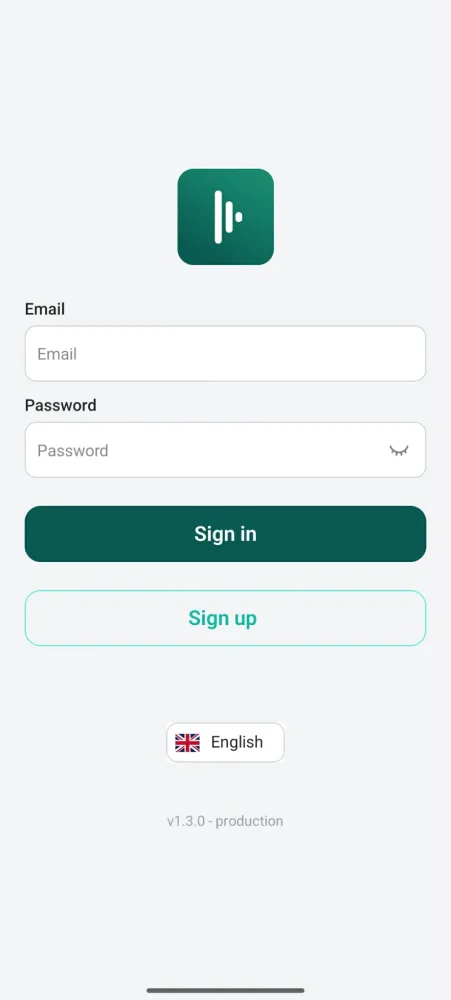
- On the sign-in screen, tap Sign up.
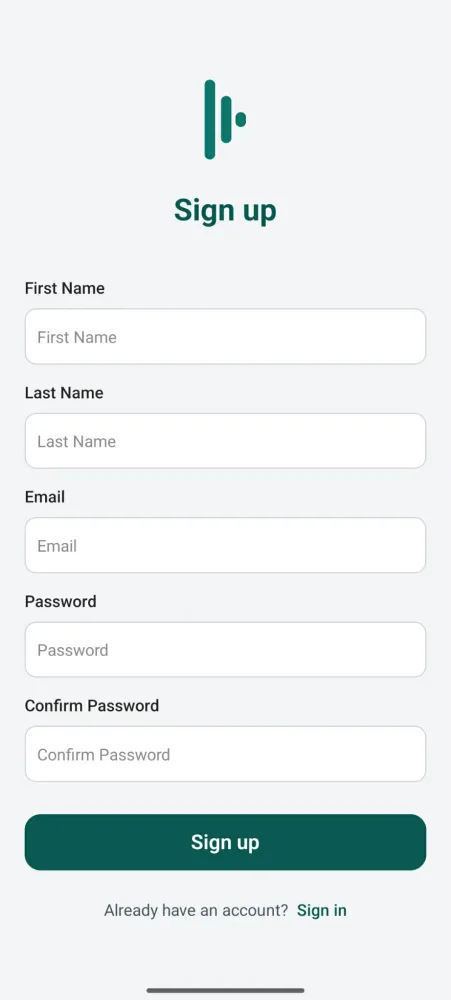
- Enter your first name, last name, work email, and a password, then confirm the password.
- Tap Sign up. Once registration succeeds, go back to the sign-in screen and log in with your email and password.
Language
Set your language from the flag selector at the bottom of the sign-in screen. You can change it later from the side drawer. The current app version and environment are shown below the selector.
Your Captain Profile ID
Your short ID appears in the top-right corner of the main screen (for example, 5401XG). It is your unique identifier, and operations teams use it to assign you to voyages.
To share it: tap the code to copy it to your clipboard, then paste it into a message or email.
Share your ID early
Operations teams need your short ID to assign you voyages. Share it when you first start working with a new operations team.
Navigation
The main screen is your voyage list. The top bar holds the menu (hamburger) on the left, the app name in the middle, and your short ID on the right.
- Main screen — voyage list grouped by status, with the location-sharing toggle at the top
- Side drawer (menu icon) — your details, language selector, app version, sign out, delete account
- Voyage detail — tap any voyage card
- Sub-screens — Voyage Events, Cleaning Code, Bunkering, and Documents, all opened from the voyage detail
Voyages
Dashboard
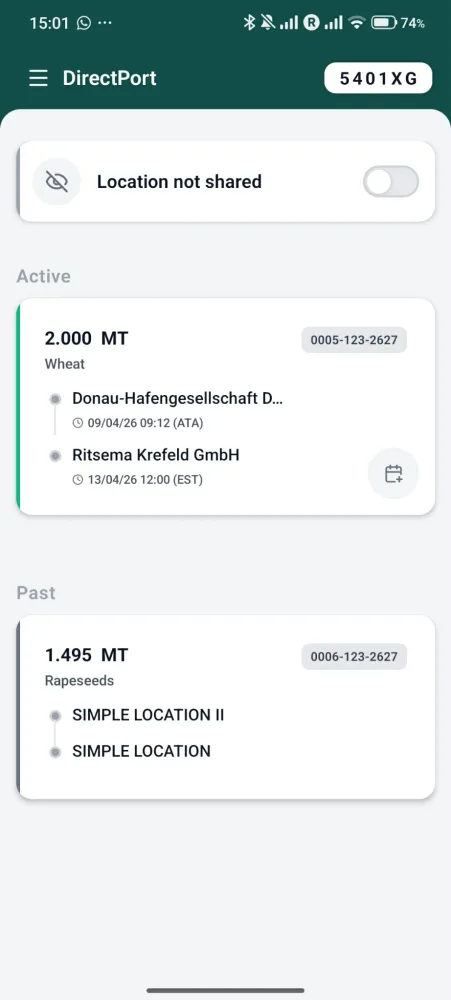
The main screen lists your voyages grouped by status, with a location-sharing toggle at the top.
| Category | What it shows |
|---|---|
| Active | Ongoing voyages (status ACTIVE, not all stops completed) |
| Upcoming | Next 2 voyages where the first stop ETA is in the future |
| Past | Last 2 completed voyages |
| Other | Everything else (manual, external, or uncategorized) |
Voyage data auto-refreshes every 10 seconds. Pull down to force a refresh.
Voyage cards
Each card shows:
- Route — origin and destination stops with a timeline
- Cargo — total weight in MT and the product name
- Reference ID — the voyage's ID badge, for example
0005-123-2627 - Color coding — green for active, blue for upcoming, gray for past or other
- Quick event button — the calendar icon jumps straight to event logging for active and upcoming voyages
Voyage detail
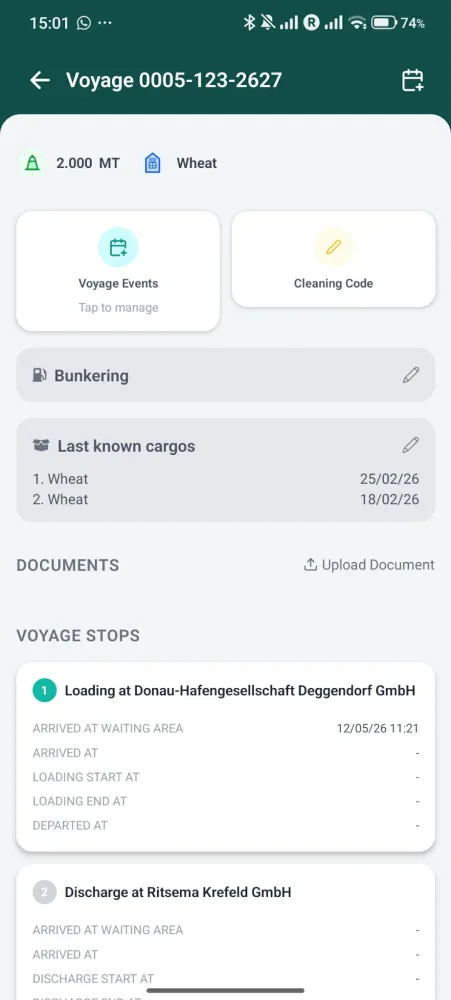
Tap a card to open the voyage. The header shows the voyage reference ID, with a quick event button on the right. Below it you will find:
- Voyage Events — log arrivals, departures, and loading or discharge times
- Cleaning Code — selectable tank cleaning code (A, B, C, or D)
- Bunkering — record the current fuel level. See the Bunkering guide for the full fuel workflow
- Last known cargos — recent cargo history for the vessel, with the bill of lading date. Tap the pencil to edit
- Documents — documents shared with you, plus any you upload. Use Upload Document to add one
- Voyage stops — the ordered list of stops, each showing its operation, location, and the timestamps recorded so far
Adding voyages
Tap the + button to add a voyage manually:
- Choose the type: Planned Voyage or Voyage (External)
- Fill in the title and details
- The voyage appears under Other
Sharing voyages
You can share a voyage with another captain using their short ID. A voyage supports up to 5 captains, assigned to slots in order.
Event Logging
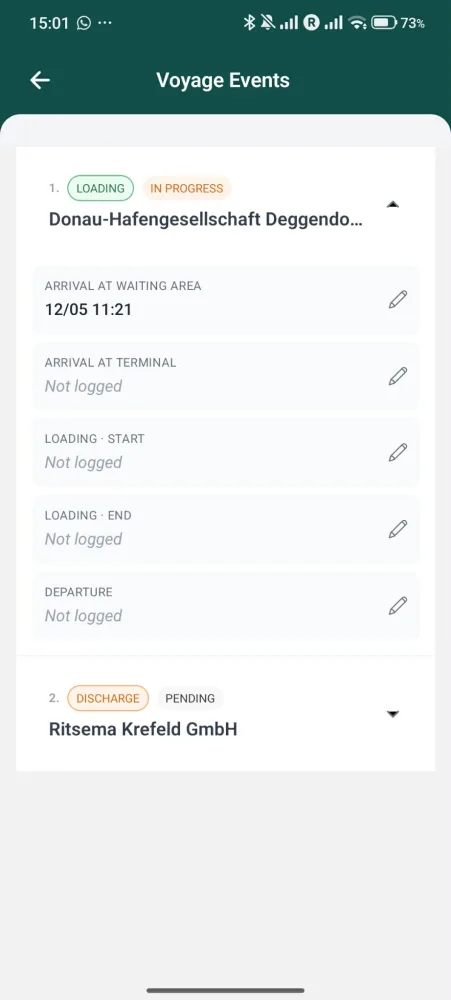
Events record voyage milestones and notify operations in real time. Open a voyage and tap Voyage Events, or the calendar button on the voyage card.
Active voyage required
You can log and edit times only while the voyage is active. The times are read-only if the voyage has not started yet, has been marked completed, or finished more than 48 hours after the last departure.
The screen lists each voyage stop as a card you can expand. Every stop shows:
- An operation badge — LOADING or DISCHARGE
- A status badge — IN PROGRESS for the stop you are working, PENDING for upcoming stops, and completed once all its times are logged
- The stop location
Expand a stop to see its timeline. Each row is one milestone with the time you logged, or Not logged while it is still open:
| Milestone | When to log it |
|---|---|
| Arrival at Waiting Area | You are positioned and waiting near the stop |
| Arrival at Terminal | You reach the terminal facility |
| Loading / Discharge · Start | Cargo operations begin |
| Loading / Discharge · End | Cargo operations finish |
| Departure | You leave the stop |
Loading stops show Loading start and end rows; discharge stops show Discharge start and end rows.
Logging a time
- Expand the stop you are working on
- Tap the pencil on the milestone you want to record
- Set the time. It defaults to now and can be adjusted up to 24 hours back or 15 minutes ahead
- Confirm. The time is saved, the stop updates, and operations is notified
To correct a time, tap the same pencil and adjust it.
Work through stops in order
Log times for your current stop (marked IN PROGRESS) first. Upcoming stops stay PENDING until you reach them.
Cargo Management
Access via voyage detail > Last known cargos.
- View — recent cargos with product name and bill of lading date (most recent 3 by default)
- Add — tap the add control, choose a product from the searchable list (filtered by tenant), and set the bill of lading date (today at the latest)
- Edit — expand any cargo to change its product or date
- Mark all up to date — confirm every cargo at once
When adding cargo, the app suggests your most-used product as the default.
Fuel Levels (Bunkering)
Record the vessel's fuel level from the Bunkering card on the voyage screen.
- Open the voyage and tap Bunkering
- Choose the fuel type
- Enter the current level and its unit (MT or L, MT by default)
- Set the date and time, add a note if needed, and save
The mobile app records fuel levels. Priced bunkering, voyage fuel consumption, cost, and CO2 are handled on the web app. The Bunkering guide covers the full workflow.
Record a level at departure and arrival
After you log a departure, the app reminds you to record a fuel level if you have not done so recently. Two readings, one at the start and one at the end, let the system work out the voyage's fuel use.
Documents
Access via voyage detail > Documents.
- View — documents shared with you by operations, plus any you have uploaded
- Download — tap to open. Links stay valid for one hour
- Upload — tap Upload Document, select up to 10 images, and the app combines them into a single PDF. Give it a title and it attaches to the voyage
Only documents shared with captains, or created by a voyage captain, are visible.
Location Tracking
The main screen has a location-sharing card at the top. Toggle it on to share your position. While on, the app tracks your location in the background and sends batched updates to operations. Toggle it off to stop sharing.
Quick Reference
| Action | How |
|---|---|
| Copy captain ID | Tap your short ID in the top-right corner |
| Refresh voyages | Pull down on the voyage list |
| Log an event | Open a voyage > Voyage Events > tap the pencil on a stop |
| Record fuel level | Open a voyage > Bunkering |
| Change language | Side drawer > language selector |
| Sign out | Side drawer > Sign out |
| Delete account | Side drawer > Delete account |
| Contact support | support@directport.eu |