
English
DirectPort Mobile App Guide
The DirectPort mobile app lets vessel captains follow their voyages, log arrival, operation and departure times, keep cargo and fuel records up to date, and share documents with the office. It is available in English, Dutch, French and German.
Getting Started
Installation
Download the app from the App Store (iOS) or Google Play (Android), or install the build your company shares with you.
Language
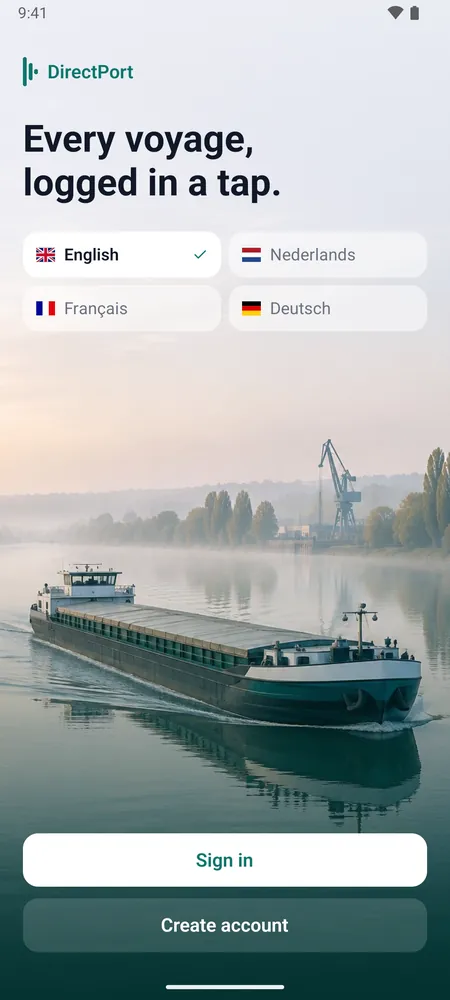
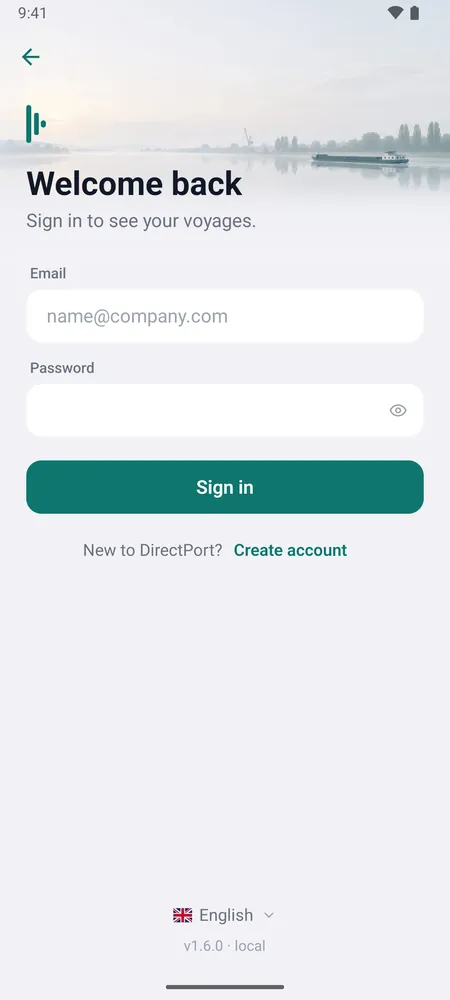
The welcome screen shows the four languages. Tap yours and the app switches straight away. You can change it later in Settings, or from the language link at the bottom of the sign-in screen.
Create an account
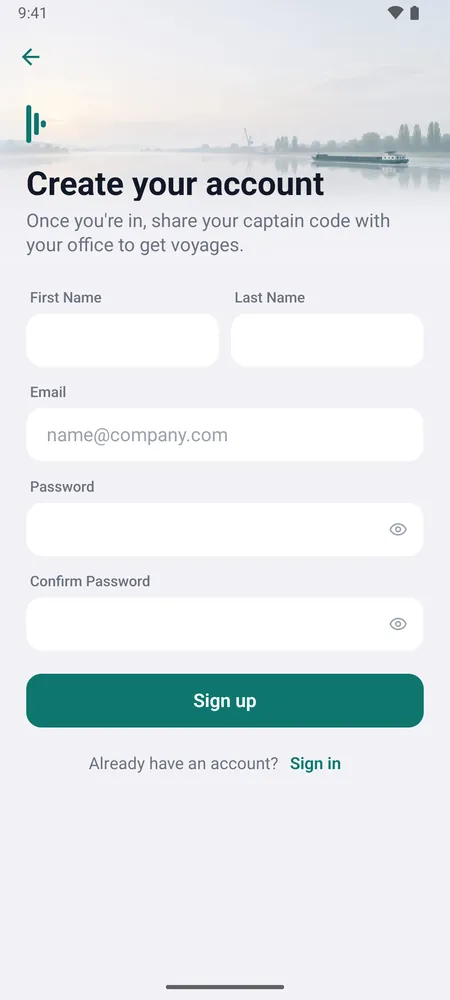
- On the welcome screen, tap Create account.
- Enter your first and last name, your email and a password, then confirm the password.
- Tap Sign up, then sign in with your email and password.
Your Captain Code
Your captain code (for example 5401XG) is how the office links you to voyages. It is shown on the Voyages screen, right under location sharing, and in Settings. Tap it to copy it, then paste it into a message or email.
Share your code early
Until the office has your captain code, no voyages will appear. If your voyage list is empty, the screen shows your code in large type so you can pass it on.
The Voyages Screen
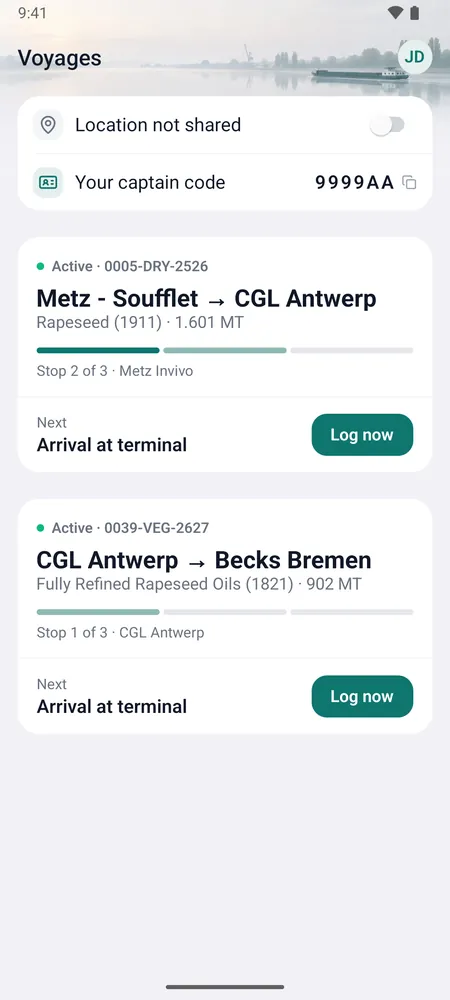
The Voyages screen is where the app opens. From top to bottom it shows:
- Location sharing, with a switch to turn it on or off. See Location Sharing.
- Your captain code, tap to copy.
- A card for each active voyage, with the route, product and weight, how far along the stops you are, and the next time to log. Log now records it straight from here.
- Upcoming and Past voyages as a short list. Tap any of them to open the voyage.
Your initials in the top-right corner open Settings. Pull down on the list to refresh; voyages also refresh on their own every 10 seconds.
A Voyage
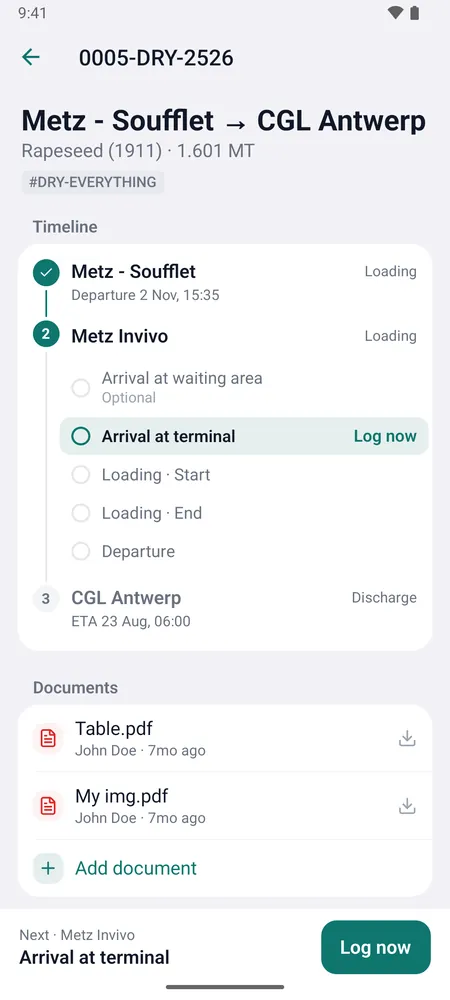
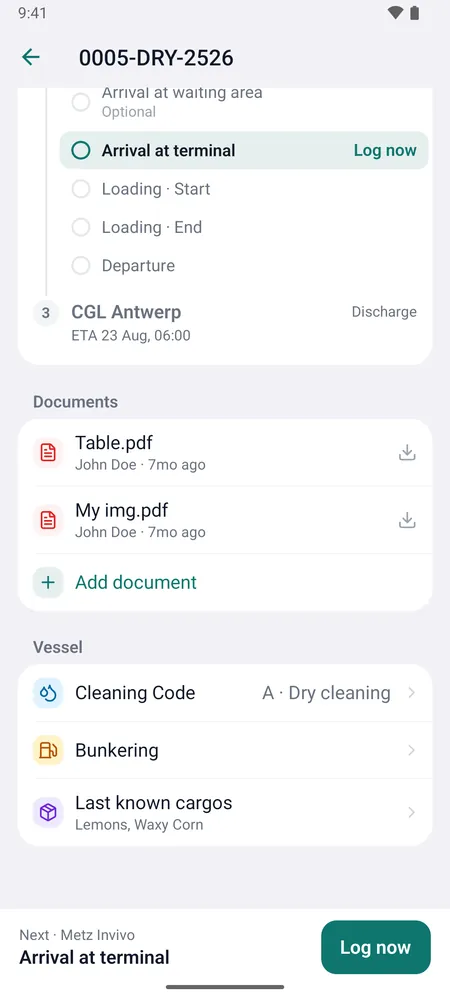
The top of the screen shows the route, product, weight and the voyage reference. Below it:
- Timeline: every stop in order. The stop you are at is open and shows its times; finished and later stops are folded to one line, and you can tap them to open them.
- Documents: documents the office shared with you, and the ones you uploaded.
- Vessel: the cleaning code, bunkering and the last known cargos.
The bar at the bottom always shows the next time to log for this voyage, with a Log now button.
Logging Times
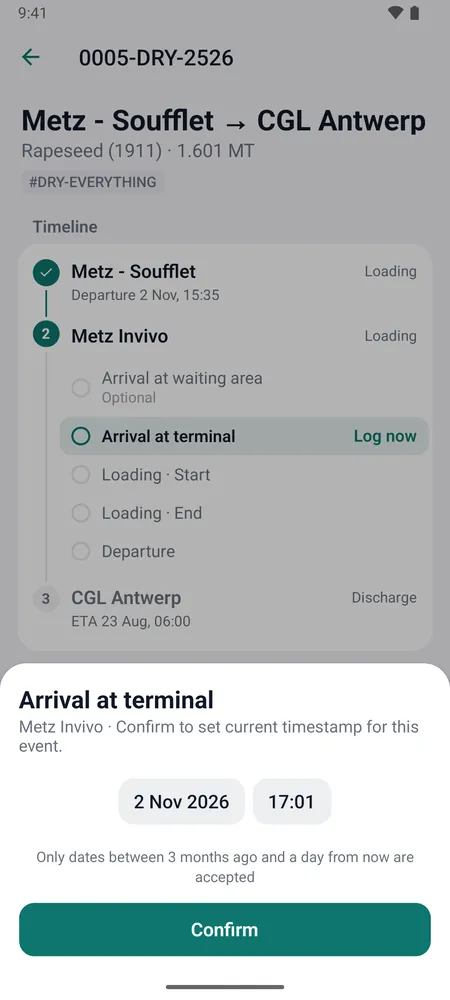
Each stop has these times, in order:
| Time | When to log it |
|---|---|
| Arrival at waiting area | You are waiting near the stop. Optional: skip it if you go straight to the terminal |
| Arrival at terminal | You reach the terminal |
| Loading / Discharge · Start | Cargo operations begin |
| Loading / Discharge · End | Cargo operations finish |
| Departure | You leave the stop |
The next time to log is highlighted in the timeline. Tap Log now (on the timeline, in the bottom bar or on the Voyages screen). A sheet opens with the current time filled in; change it if needed and tap Confirm. The office sees the time right away.
To correct a time, tap it in the timeline and save the new value. Times can be set up to 3 months back and up to a day ahead.
Active voyages only
Times can be logged while a voyage is active. When a voyage has not started yet, has been completed, or ended more than 48 hours ago, the timeline is read-only and a note at the top of the voyage says why.
After you log a departure, the app asks you to record a fuel level if none was recorded recently.
Documents
- Open a document by tapping it. Download links stay valid for one hour.
- Add document lets you take photos with the camera or pick them from your phone. You can add several pages, including more photos from the naming screen. Give the document a name (letters, numbers, spaces, hyphens and underscores) and tap Upload. The pages are combined into one PDF and attached to the voyage.
You see documents the office shared with captains and documents uploaded by a captain on the voyage.
Cleaning Code
Tap Cleaning Code under Vessel and choose A, B, C or D. Each option shows what it means.
Fuel Levels (Bunkering)
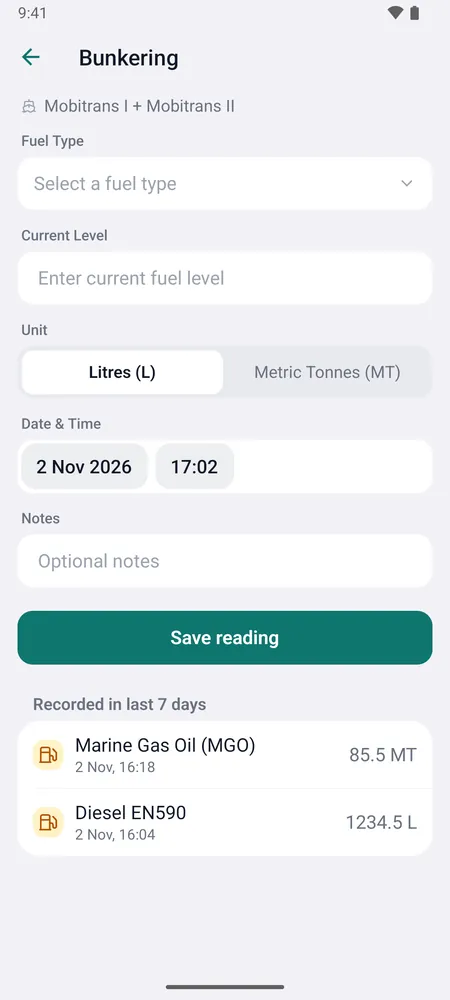
- Open the voyage and tap Bunkering under Vessel.
- Choose the fuel type.
- Enter the current level and choose Litres or Metric Tonnes.
- Check the date and time, add a note if needed, and tap Save reading.
Readings from the last 7 days are listed below the form. The app records fuel levels; priced bunkering, fuel use, cost and CO2 are handled in the web app. The Bunkering guide covers the full workflow.
Record a level at departure and arrival
Two readings, one at the start and one at the end, let DirectPort work out the voyage's fuel use.
Last Known Cargos
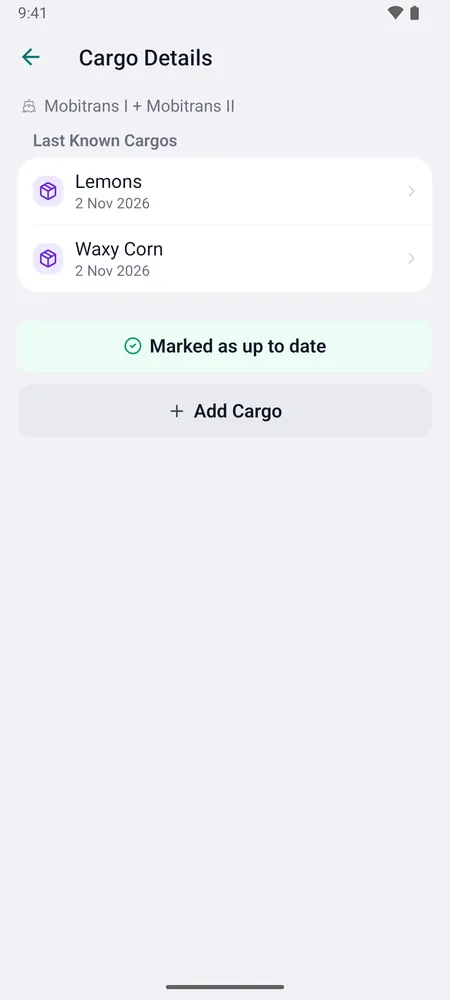
Tap Last known cargos under Vessel to see the vessel's recent cargos with their bill of lading dates.
- Add Cargo: search for the product, set the bill of lading date and tap Add. The product the vessel carries most often is selected for you.
- Edit: tap a cargo to change its product or date.
- Mark all as up to date: confirms the list in one go.
Location Sharing
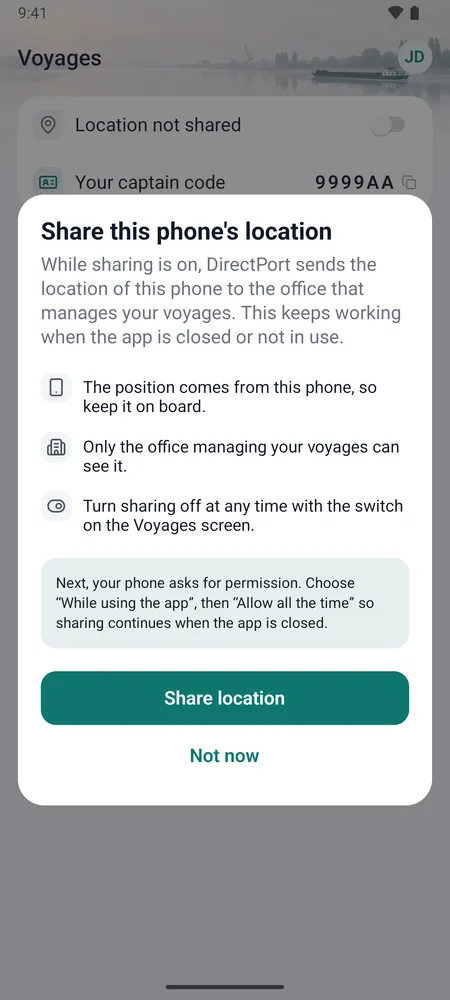
Location sharing sends the position of this phone to the office that manages your voyages, so they can follow the vessel and its arrival times. It keeps working when the app is closed, so keep the phone on board while sharing is on.
To turn it on, use the switch at the top of the Voyages screen. The app explains what is shared, then your phone asks for permission:
- iPhone: choose Allow While Using App, then Change to Always Allow.
- Android: choose While using the app, then Allow all the time in the settings screen that opens.
With only "while using the app", sharing stops as soon as the app is closed. Turn the switch off to stop sharing at any time. On Android, a notification shows while sharing is on.
Settings
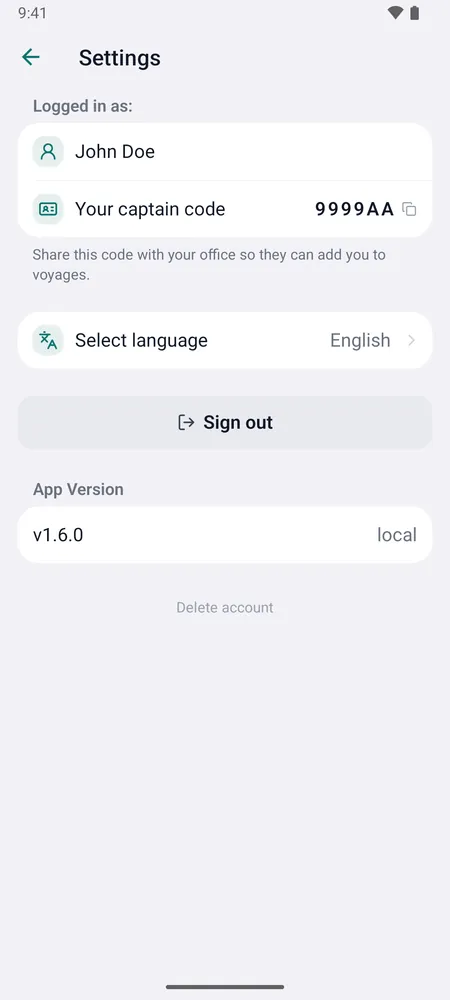
Tap your initials on the Voyages screen. Settings shows your name and captain code, the language, Sign out and the app version. Delete account is at the very bottom and asks for confirmation before anything is deleted.
Quick Reference
| Action | How |
|---|---|
| Copy your captain code | Tap it on the Voyages screen or in Settings |
| Log the next time | Log now on the voyage card or at the bottom of the voyage |
| Correct a logged time | Open the voyage and tap the time in the timeline |
| Add a document | Voyage > Documents > Add document |
| Record a fuel level | Voyage > Vessel > Bunkering |
| Change language | Settings > language |
| Sign out | Settings > Sign out |
| Contact support | support@directport.eu |